The dictionary is sometimes wrong. It picks the wrong sense of the word, the captured context is half a sentence, or the card is missing the gender note that made you save the word in the first place.
You usually find out three weeks later, when the card comes up for review. You can still fix it in Anki's card editor then, but you've already burned reviews on a broken card, and editing mid-review kills your momentum.
The better fix is upstream. Since Wordwise v2.3, every field of the card is editable in the lookup popup, before it ever exports to Anki.
Why edit cards before they reach Anki?
Three problems come up again and again when cards are created automatically from real reading:
- The dictionary picks the wrong sense. "Bank" in "river bank" is not "bank" in "bank account." Wordwise reads the surrounding sentence to pick the right sense, but no lookup is right 100% of the time. When it misses, you want to correct it while you still remember what the word actually meant in your text.
- The context gets truncated. Dialogue, quotation marks, and messy page layouts can confuse sentence detection, so the card captures a fragment instead of the full sentence. A fragment gives you nothing to recall against.
- The card is missing the detail you care about. Gender for German nouns, the tense of an irregular verb, a register note like "informal, mostly spoken." A dictionary won't add these for you.
Each card stays in your review rotation for months. Ten seconds of editing at capture time beats reviewing a card that teaches you the wrong thing.
How to edit a card in Wordwise
- Look up a word as usual (double-click or your trigger key)
- Click the pencil icon in the top right of the popup
- Change any field
- Hit Save, then export

Clicking the pencil switches the popup into edit mode, where every field becomes a text box:

- Context sentence – expand a truncated fragment into the full sentence, or trim a rambling one down
- Definition – rewrite it, pick a different sense, simplify the wording to your level
- Word and original form – swap a conjugated form for the base form (Smart Headword handles this automatically in most cases, but you can override it)
- Note – add gender, tense, register, or any personal reminder
Example: fixing a truncated context sentence
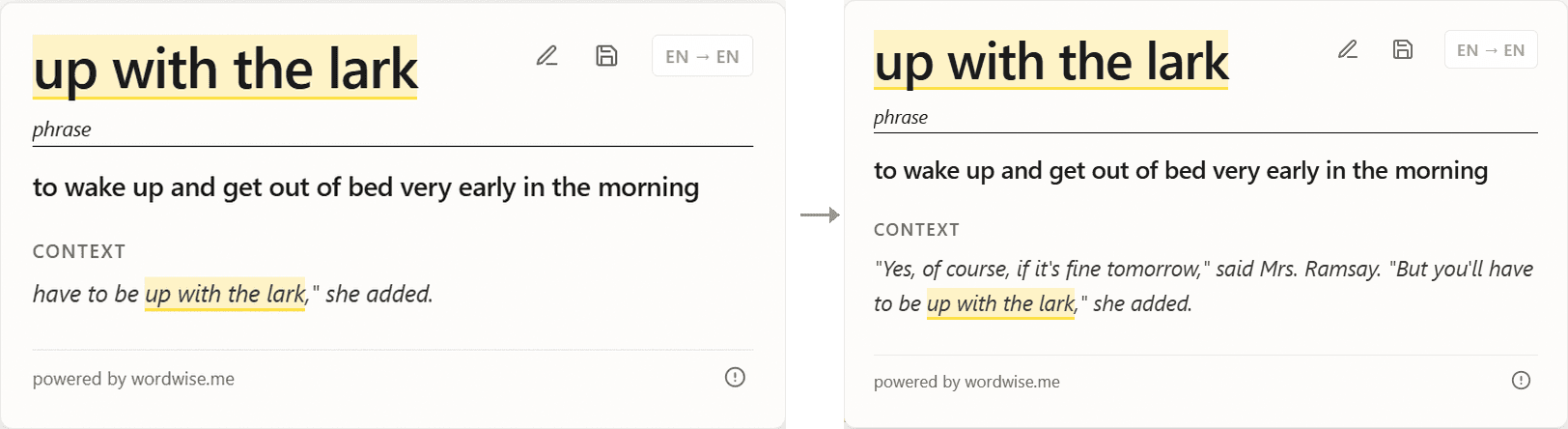
Here's a real case. Reading To the Lighthouse, I looked up the phrase "up with the lark." The definition came back fine, but the captured context was a fragment:
have to be up with the lark," she added.
That's not enough to recall against. Who has to be up with the lark, and why? One edit later, the card carries the full line:
"Yes, of course, if it's fine tomorrow," said Mrs. Ramsay. "But you'll have to be up with the lark," she added.

Now the card has a scene attached to it. When it comes up for review, Mrs. Ramsay and her promise of a trip to the lighthouse come with it. That hook is exactly why context sentences make flashcards stick.
Your edits carry through to the Anki card
What you see in the popup is what lands in Anki. The edited context, definition, and notes export exactly as you set them, into the same designed card template:


What you can't edit
A few things are set by your preferences, not per card:
- The language pair (set in extension settings)
- Card styling (we don't support style editing at the moment)
Do you need to edit every card?
No. Most cards are fine as captured, and editing everything would defeat the point of a four-second lookup-to-Anki workflow. Edit when it matters: the definition is the wrong sense, the context is a fragment, or the card is missing the one detail (gender, tense) you know you'll need. Everything else, export and keep reading.
Try it
Get Wordwise for Chrome or Firefox. Free for English lookups, multi-language with a 7-day free trial. No credit card required.