Frequently Asked Questions
Find answers to common questions about Wordwise.
Audio not working?
Update to v2.4.1 to fix new lookups. To fix cards already in Anki, install our free audio fix add-on.
What's the difference between Anki Dictionary and Wordwise?
Anki Dictionary is the browser extension you install. Wordwise is the service behind it that powers multi-language lookups.
If you only look up English words, nothing changes, it works exactly as before, no account needed.
If you want to look up words in other languages (Spanish, German, Italian, Russian, and more), or you want definitions in other languages, you'll need a Wordwise account. Multi-language lookups require a paid subscription after a 7-day free trial.
This update also adds one-click Anki export and redesigned flashcard templates for all users, free and paid.
Can I use Anki Dictionary without an account?
Yes, English-to-English lookups work without an account, exactly as before.
You only need a Wordwise account for multi-language support, which comes with a 7-day free trial.
How do I start the free trial?
The free trial starts automatically when you sign up for a Wordwise account — no credit card or extra steps needed. Just make sure you're also logged in to the extension with the same account so the trial is active there.
If your trial doesn't appear to be active after signing up, simply log out and log back in to the extension. This refreshes your session and should activate it right away.
What languages are supported?
Wordwise currently supports definitions in 22 languages:
English, Spanish, French, German, Italian, Portuguese, Russian, Japanese, Korean, Chinese, Arabic, Dutch, Swedish, Norwegian, Danish, Finnish, Polish, Czech, Slovak, Hungarian, Romanian, and Turkish.
If you are unsure if a language is supported, just double click and give it a try.
If your preferred language isn't listed, email us at help@wordwise.me to request.
Can I cancel anytime?
Yes, cancel anytime from your account dashboard.
After canceling, your subscription will stop when the current period ends. You'll lose access to multi-language lookups, but English lookups remain free forever.
How does the Anki export work?
Install Anki on your computer and add the AnkiConnect plugin.
When you click the export button on a lookup, the flashcard appears instantly in your Anki deck, no manual import needed. You can choose which deck to export to in the Anki Dictionary options page.
How to install AnkiConnect?
AnkiConnect is a popular, free Anki plugin that allows external tools to communicate with Anki. It is not made by Wordwise — we just use it to connect with Anki.
- Open Anki on your computer
- Go to Tools → Add-ons
- Click Get Add-ons...
- Enter the code:
2055492159 - Click OK and restart Anki
Once AnkiConnect is installed and Anki is running, clicking the export button on a lookup will send the flashcard directly to your Anki deck.
Why am I seeing duplicated cards in Anki?
Those aren't duplicates — they're reverse cards, and they're there by design.
When you export a word, Wordwise creates two cards: Wordwise Basic (word on the front, definition on the back) and Wordwise Reverse (definition on the front, word on the back). This is called receptive + productive practice — recognizing a word and recalling it are two different skills, and training both leads to much stronger retention.
If you only want one direction, you can turn off reverse cards in the extension settings — click the extension icon, then the gear icon in the top right. You can also suspend individual cards in Anki's Browse window by right-clicking a card and choosing Toggle Suspend.
Why is audio not working in my lookup or exported card?
The old audio API no longer works due to upstream changes.
For new lookups: Update the extension to version 2.4.1 or later. This version uses a new audio source and fixes the issue.
For cards already in Anki: Cards exported before the fix contain links to the old audio source. To fix them, install our free Wordwise Audio Fix add-on for Anki. It scans your collection and replaces the broken audio links automatically.
To install: open Anki, go to Tools → Add-ons → Get Add-ons, enter the code 527539280, click OK, and restart Anki. Then go to Tools → Fix Wordwise Audio Links to fix your cards.
How do I change the trigger key for lookups?
Open Anki Dictionary settings (click the extension icon, then the gear icon in the top right). You can set the trigger to double-click, Ctrl/Cmd + double-click, or other options.
Note for users upgrading from the previous version: The old version used Ctrl/Cmd + double-click by default. The new version defaults to double-click but is now customizable. If you preferred the old behavior, you can set it back in settings.
Where can I see my lookups made with Wordwise?
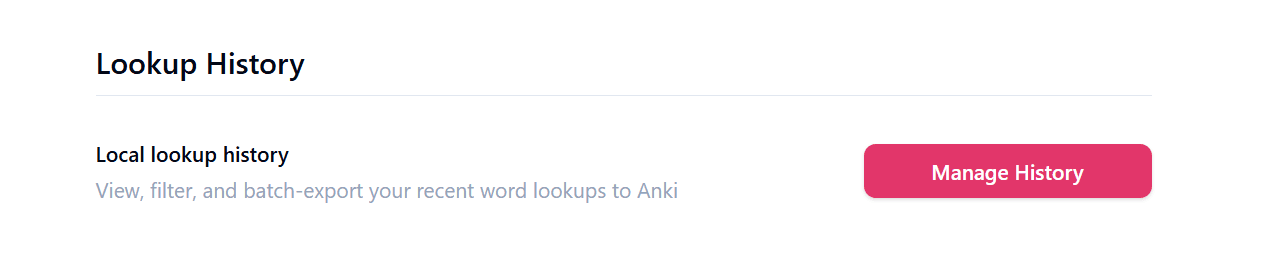
As of version 2.1.5, you can view your lookup history in the Lookup History section of the settings page. To access it, click the extension icon, then the gear icon in the top right.
What happened to my lookups from the old version?
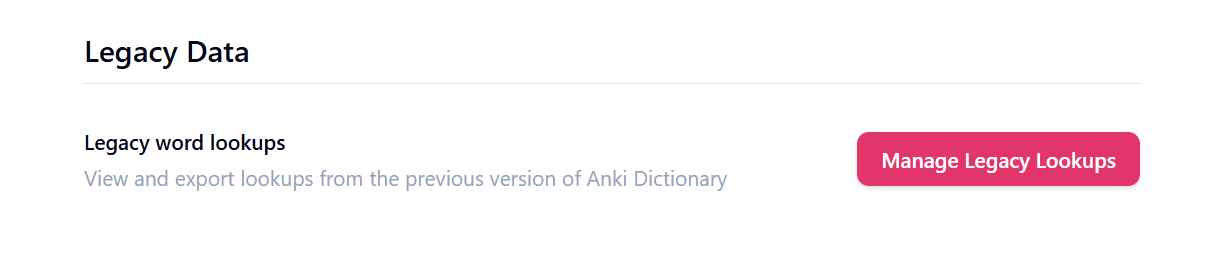
They are in Legacy Data section in the settings page. To open the settings page, click the extension icon, then the gear icon in the top right.